
Peterborough : 01733 306 133
File Genie
  • Home
  • Getting Personal
  • What We Do
    • Computer Repairs & Upgrades
    • iPad & Tablet Repairs
    • Smartphone Repairs
    • Data Recovery
    • Virus & Spyware Removal
    • Antivirus Setup
    • Software Install & Setup
    • Tuition
    • More... >
      • Computer Health Check
      • Computer Cleaning Service
      • Full Windows Reinstall
      • Install Components & Upgrades
      • Sourcing Components
      • Hard Drive Replacement
      • DVD & CD Drives
      • Memory (RAM)
      • Broadband Internet Issues
      • Password Reset or Recovery
  • Support Centre
    • Online Support
    • Telephone Support
    • Driver Downloads
    • Laptop & Smartphone Loan
    • FAQ's
    • Local Links
  • Price Guide
  • Reviews
  • Blog
  • Get In Touch

Minimise Risk with Hybrid Working and GDPR Compliance

13/5/2024

 
Minimise Risk with Hybrid Working and GDPR Compliance
Working from home, whether full time or hybrid, is still common practice following on from the Covid lockdown era. You might have employees who spend some of their time working remotely using office laptops and other hardware or you might allow employees to use their own devices and access company software. Both of these options come with their own risks but with a bit of due diligence you can ensure your company and employees stay on the right side of the law.
GDPR – What you need to know:
The Data Protection Act 2018 is the UK’s implementation of the General Data Protection Regulation (GDPR).

Anyone who uses personal data must follow ‘data protection principles’ and ensure the information is used fairly and within the law. Personal data must only be used for specified purposes and needs to be limited to what is necessary. Find out more about the Data Protection Act 2018 here.

Minimise the Risks
Employees who work from home and that handle personal data must be fully trained on GDPR and how it affects their working practices. All employees must use strong passwords – it’s hard to keep track of passwords so password managers are a great tool to keep them safe and secure. Encourage your employees to use a VPN (virtual private network) when working from home as an extra layer of security.

The use of company devices is the most expensive option (but most secure) for employees who work remotely. The devices should be able to be supported and updated remotely and measures should be put in place to prevent data loss.

If your employees wish to use their own devices for working from home there are considerations you need to take into account before authorising in order to help prevent data protection and security breaches:
  • Ensure your employees have up to date software (including operating system).
  • Bear in mind the likelihood of family members or other members of the household seeing sensitive data.
  • Do other members of the household share the devices? If so, how can you ensure sensitive data is not shared?
  • Encrypt sensitive company data – there are multiple third party hard drive encryption software solutions.
  • Discourage the practice of storing or transferring sensitive data to insecure storage devices such as USB sticks.

Security Checklist:
  • Up to date policies for remote working.
  • Make sure all your employees (and you) are fully trained on data protection and how to remain secure when working remotely.
  • Guidance on working remotely for all employees.
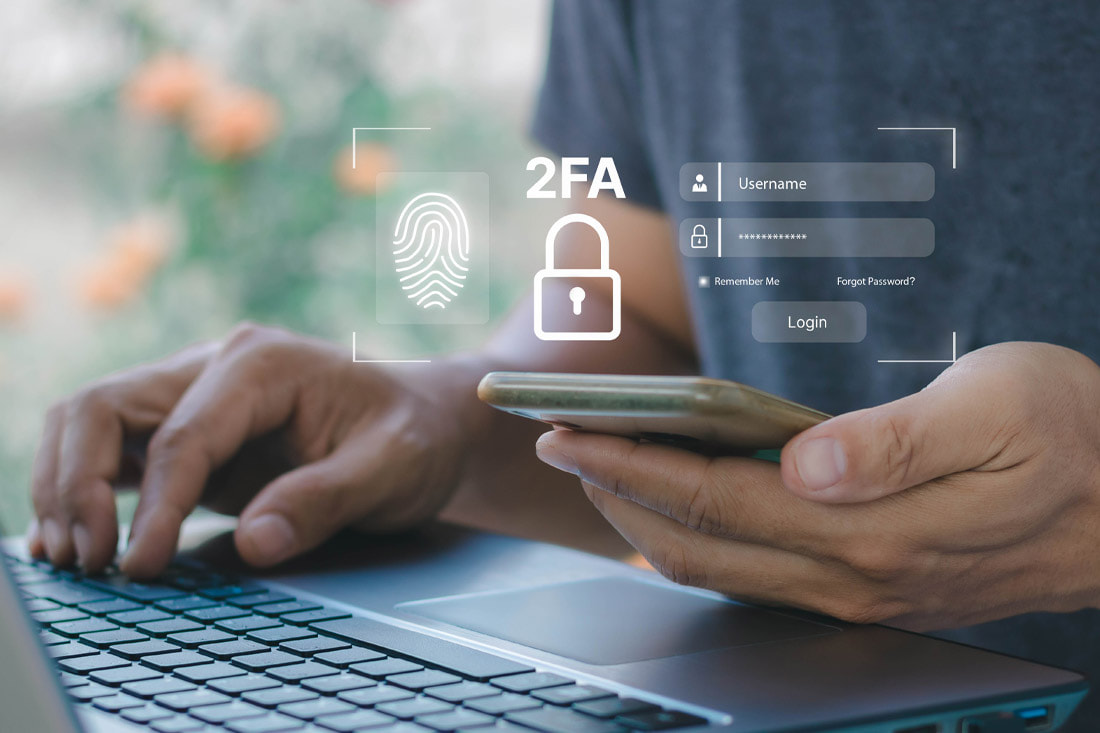
  • Ensure all employees use strong passwords and utilise multi-factor authentication where possible.
  • Ensure employees use company email addresses when dealing with sensitive data.
  • Control access so that employees only have access to the data they need and nothing more.
  • Ensure all employees have up to date antivirus software installed (and turned on) on any personal device being used for work.
  • Ensure you use a corporate VPN to keep connections secure.
​
When Employees Leave
To protect against data loss you need to make sure you remove access to the company email address immediately. Remove access to all applications and disable, retrieve and wipe any company owned devices.

On leaving, ask the employee to sign a document acknowledging they have returned any company owned devices and that they haven’t kept any company data.

How to Protect Your Smart Home from Hackers

22/6/2023

 
How to Protect your Smart Home from Hackers
You probably already have a lot of smart devices in your home - smart thermostat, smart speaker, smart TV, smart doorbell - our homes are becoming automated in ways we could never have imagined a few decades ago.

​But our smart homes make us vulnerable to attacks from unscrupulous hackers - just how safe are we when we connect much of our lives to WiFi?
Companies producing smartphones, smart appliances and other internet-connected devices will have to comply with the Product Security and Telecommunications Infrastructure Act from 29 April 2024 - this means manufacturers will be obligated to make their smart devices more secure, including banning the use of 'universal default and easily guessable default passwords', informing customers on how long they will provide support and updates for their products and report known vulnerabilities found in any of their devices.

Smart tech is constantly improving and getting harder to breach with ongoing updates and improvements but there are still weaknesses that leave our homes vulnerable to security breaches. The new law will make it easier for consumers to make informed decisions when buying smart devices for their home but until then there are a few things we can do to protect our smart homes from being hacked.

We’ve put together our top tips to help you secure your smart home:
​
Secure your Wifi network
Most Wifi routers come with an easy to remember (and easy to hack) password such as ‘admin’. Your WiFi gives potential hackers access to everything that is connected to it, so it’s vital you have a strong password to protect it. It’s hard to remember all the different passwords we need for all our tech- password managers are a great way to generate and safely store all your passwords.

Use Multi-Factor Authentication
Most devices give you the option to set up multi-factor authentication ( a collection of forms of verification alongside your username and password, i.e. fingerprint, PIN etc)- meaning you create multiple layers of defence against hackers.

Update Your Device's Software
As we mentioned earlier, updates provide patches and fixes for security holes and bugs, so it’s really important to make sure your devices are running the latest available version.

Set up a Separate Network
In the same way you can set up ‘guest’ networks for your kids to access the internet, you can also set up a separate network just for your smart home. Keeping your smart home on a different network will make it harder for hackers to access data on your computer or smartphone even if they breach your smart home network.

Avoid Using Public WiFi to Access Smart Devices
It’s tempting to use free WiFi to check on your smart security etc while out and about but doing so can put your security at risk. If you need to access your smart home while away then it’s much safer to use 3G/4G.

Make Sure Your Smartphone is Secure
It’s an obvious one really, your smartphone needs to be secure with a passcode that cannot be easily worked out and fingerprint/retina scan activated.

Update Old Routers
Outdated routers are a hacker's dream, with old security protocols and firmware making them easier to access.

Use a Security Suite
Coming in various options from basic to advanced, a security suite will typically provide antivirus, firewall, anti-spam and parental control to help protect your smart home from hackers. Check out PC Mag’s comprehensive list of security suites here. 

​
For help  and support with updates, antivirus installation and any other smart device queries, contact Ben at File Genie.

Free and Paid for Password Managers

7/3/2018

 
Free and Paid For Password Managers
Passwords – they keep our digital lives secure, and at the File Genie blog we have spoken about good Password creation on a few occasions, but how do you keep your passwords secure?
 
Do you trust to your memory? How many different passwords do you have to remember? If you count them all up, chances are there are far more than you might think.
 
What about writing them all down – keeping a special notebook for them? Well that’s risky. Most of all, will you remember to write each and every password down?
 
Password Managers are another way. In fact, they can be really helpful, taking the trial and error out of thinking up and recalling at will a new, complex password. For most of them, all you need to do is to remember one ‘Master’ password. Most are installed into your browser directly, then every time you need a new password the manager will generate one for you, then remember it. It will also pick up any existing passwords and store them securely. All this means you are less likely to need to reset passwords after forgetting them.
 
There are several FREE Password Managers on the market, and many you pay for. Paid solutions will usually have a few extra bells and whistles, but the best of the free options are very good too. Some of the premium options will offer a free trial period so you can try before you buy, which is a good idea, allowing you to make sure you are happy with the way they work.
 
A quick internet search will have you tumbling over dozens of them, but these are some we are happy to tell you about:

Free Password Managers

Last Pass
www.lastpass.com
 
LogMeOnce
www.logmeonce.com
 
Myki
www.myki.co

Paid Password Managers

Dashlane
www.dashlane.com
 
LastPass Premium
www.lastpass.com
 
Sticky
www.stickypassword.com
 
Keeper
www.keepersecurity.com

Free and Paid for Password Managers - written for File Genie by Freelance Writer Ruth Raymer @WritingWalking
<<Previous

    Search

    Categories

    All
    Android
    Antivirus
    Apple
    Apple IWork
    Apps
    Black Friday
    Broadband
    Christmas
    Computer
    Computer Repairs
    Computer Surgery
    Computer Virus
    Cyber Fraud
    Cyber Monday
    Digital Legacy
    Digital Subscriptions
    Email Attachments
    Emails
    Environment
    Files & Photos
    File Storage
    GDPR
    Geeks
    Google Docs
    Internet
    Internet Service Provider (ISP)
    Laptop
    Laptop Loan
    LibreOffice
    Microsoft
    MS Office
    MS Office 365
    Operating System
    Payleven
    PC
    PC Repairs
    Personal Care
    Phishing
    Safe Password
    Safety
    Scam
    Screen Protectors
    Security
    Smartphone
    Smartwatch
    Social Media
    Support
    Tablet
    Tech
    Upgrade
    WFH
    Windows
    Windows 10
    Windows 11
    Windows 7
    Windows 8
    Windows 8.1
    Windows Vista

    Archives

    October 2025
    July 2025
    June 2025
    May 2025
    April 2025
    December 2024
    October 2024
    August 2024
    May 2024
    January 2024
    December 2023
    June 2023
    March 2023
    February 2023
    January 2023
    December 2022
    October 2022
    September 2022
    August 2022
    July 2022
    June 2022
    April 2022
    March 2022
    February 2022
    January 2022
    November 2021
    October 2021
    September 2021
    August 2021
    June 2021
    May 2021
    May 2020
    April 2020
    April 2019
    December 2018
    November 2018
    March 2018
    February 2018
    January 2018
    December 2017
    November 2017
    August 2017
    March 2017
    January 2017
    November 2016
    October 2016
    July 2016
    April 2016
    March 2016
    April 2015
    March 2015
    November 2014
    October 2014
    September 2014
    August 2014
    May 2014
    April 2014
    March 2014
    February 2014
    November 2013
    October 2013

    RSS Feed

File Genie – Google Reviews
File Genie is an approved member of Safe Local Services
File Genie is a member of The Local View Peterborough
File Genie - Computer Repair Reviews on Freeindex
We accept payments with Payleven powered by sum-up

What We Do

  • Computer Repairs & Upgrades
  • Laptop & Netbook Repairs
  • PC Repairs & Upgrades
  • iPad & Tablet Repairs
  • Smartphone Repairs
  • Data Recovery
  • Virus & Spyware Removal
  • AntiVirus Setup
  • Software Install & Setup
  • Tuition

Support Centre

  • Online Support
  • Telephone Support
  • Broadband Internet Issues
  • Password Reset or Recovery
  • Driver Downloads
  • Laptop & Smartphone Loan
  • Internet Security
  • FAQ's
  • Local Links

Follow File Genie

Enquiry

  • Customer Reviews
  • File Genie Blog
  • Get in Touch

Contact Us

Tel: 01733 306133
Mob:
07872 052 751
Email:
genie@filegenie.co.uk

Address

10 Christopher Close, Dogsthorpe, Peterborough, Cambridgeshire, PE1 3YA

Sitemap   |   Cookies   |   Privacy Policy   |   Terms & Conditions
© 2024 Copyright File Genie Peterborough: Personal Care for your Computer, Tablet & Smartphone. Providing computer, tablet & smartphone repair services throughout Peterborough and Greater Peterborough in Cambridgeshire. www.freeindex.co.uk
  |  Website Design by Creative Remedy